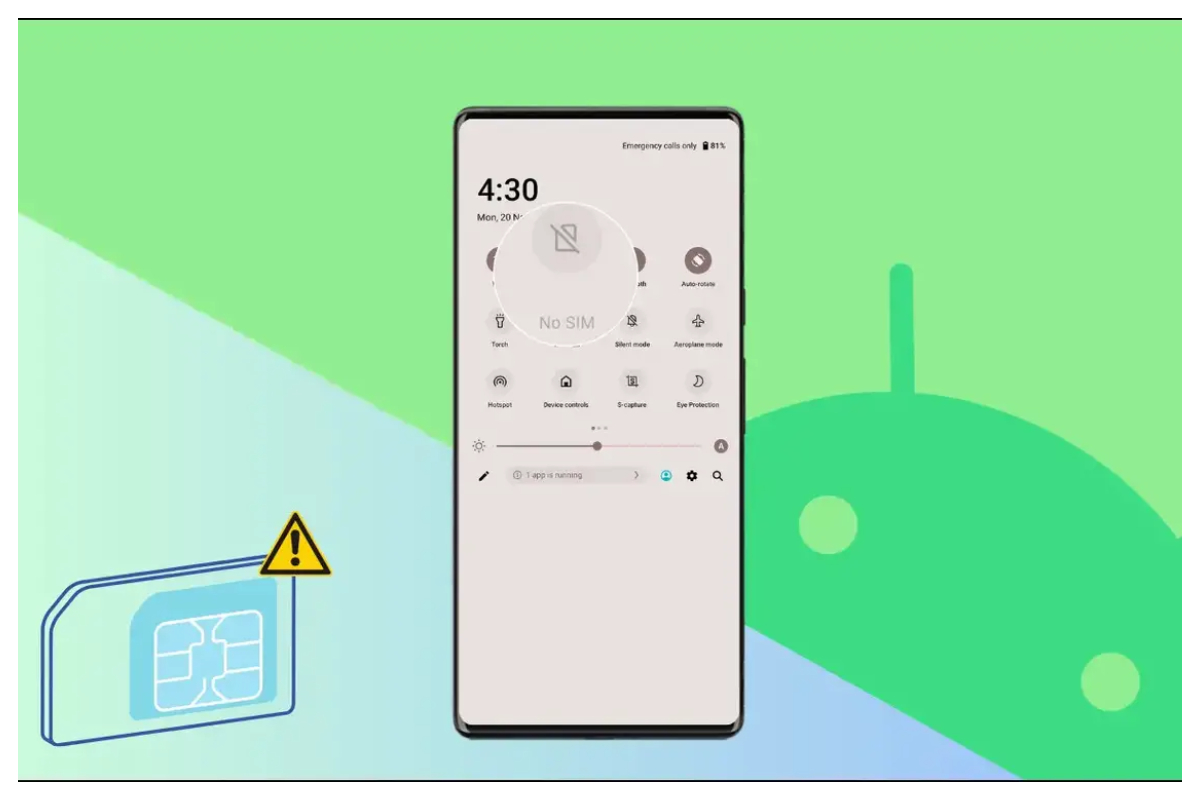
Experiencing the “Emergency Calls Only” error can be highly frustrating, as it disrupts communication and renders regular smartphone functions inaccessible.
It renders your advanced smartphone virtually useless for anything beyond basic emergency calls. This can raise safety concerns, particularly if you find yourself stranded or lost without access to navigation, ridesharing, or communication with friends and family.
Quick Fixes for the “Emergency Calls Only” Error
Restart your device.
At times, merely powering off and then on your phone can resolve connectivity issues and eliminate the “Emergency Calls Only” error. Here’s a simple guide to follow:
- Hold down the power button for a few seconds.
- Tap “Power off” and wait at least 10 seconds.
- Press and hold the power button again to turn your phone back on.
Let the phone reboot fully and reconnect to the network. This refresh can often resolve temporary glitches that triggered the error message.
Allow data roaming.
Enabling data roaming can resolve issues connecting to local towers, especially when traveling to a new location. This allows your phone to connect to alternate carriers for better network coverage.
- Go to “Settings” and select “Network and Internet.”
- Tap “Mobile Network” and select your SIM.
- Turn on “Roaming” to enable connectivity outside your main network.
Be mindful that you might incur roaming charges if they’re not part of your cellular plan.
Ensure the SIM card is enabled.
- Go to “Settings,” then “Network and Internet.”
- Select “SIM Cards” and tap your SIM.
- Make sure the SIM status says “Active” and not “Disabled.”
- If disabled, tap it to enable it and reconnect to the network.
Reinserting your SIM card or cleaning its contacts may also resolve the issue. Remember to disable airplane mode after reinsertion and try reconnecting to the network.
Manual network selection
In some cases, allowing your phone to automatically select networks may fail and result in connectivity issues. Manually selecting your carrier can be a workaround solution.
- Go to “Network operators” in your phone’s settings.
- Turn off “Automatically select the network.”
- Tap “Choose network” to manually pick your carrier.
Wait a few moments after selecting your network, and you should regain connectivity.
Reset all network settings.
Resetting all network settings unregisters the device from current connections, forcing it to reconnect when powered back on.
- Go to “Settings” and select “System.”
- Choose “Reset options,” then “Reset Wi-Fi, mobile, and Bluetooth.”
- Tap “Reset settings” and confirm when prompted.
After resetting your network settings, power your device off completely, then back on to reconnect from scratch.
Install the pending system and carrier updates.
Sometimes, outdated software can cause connection issues. Be sure to install any available updates.
- Go to “Settings” and select “System updates.”
- Install any pending Android system updates.
- Check your Messages app for SIM carrier updates.
- Tap to install updates from your service provider.
Ensuring your device’s software is up-to-date can prevent bugs that may interfere with network connectivity.
Conclusion
Don’t allow the “Emergency Calls Only” error to disconnect you from communication and convenience. Follow the suggested fixes above until your cellular, text, and data capabilities are restored.
Familiarizing yourself with these troubleshooting steps will empower you to resolve similar issues in the future. With the appropriate solution, you’ll be reconnected and able to enjoy all the features your Android phone has to offer.